Business banking. Any time. Anywhere.
Customizable dashboards
Unique sign-in credentials for all users
Permission settings for enhanced security
Review and approval workflows
Speedy remote deposit processing
Business Members: Steps to re-enroll in Online & Mobile Banking
- 1
Gather your info
You'll need your business tax ID (TIN), account number + your SSN and date of birth.
- 2
Sign in
Select "Sign in", then choose the business option.
- 3
Enroll in Business Banking
Select the "Enroll" link and create your new sign-in credentials.
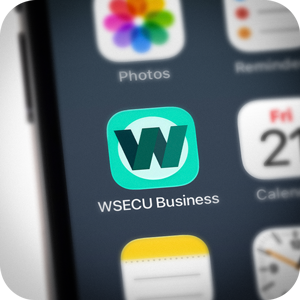
Download the WSECU Business Mobile Banking app
Download the WSECU Business mobile app to access your business accounts on your mobile device.
Be sure to select the app with the icon shown below when installing.




FAQ
Business accounts often require tools and controls that go beyond what most consumers need. To provide the best experience for both personal and business banking, WSECU offers a dedicated Business Online & Mobile Banking platform designed specifically for business needs, including enhanced account management capabilities, user access controls, payments and other business-focused features.
While this means personal and business accounts are accessed through separate platforms, it allows us to provide a more secure and robust experience tailored to how businesses manage their finances.
Notify joint account holders that they’ll be able to follow the same path to enroll in Business Online & Mobile Banking and create their own sign-in credentials. You can forward this page for details.
Subusers will also use their own sign-in credentials. After you enroll, you’ll be able to create specific roles with set permissions. Once you assign those roles to individuals, temporary sign-in credentials will be created for subusers to initially sign in. From there, subusers can update their passwords.
Your Business Online & Mobile Banking account will be locked after three unsuccessful password attempts. To regain access, you'll need to reset your password.
- From the home screen, select “Forgot your username or password?”
- Choose your account type and enter the requested information to verify your account.
- On the Security Challenge screen, choose how you'd like to receive your verification code.
- Enter the verification code in the Validation Code field.
- Create a new password that meets the password requirements and re-enter it to confirm.
- Sign in using your new password.
If you're having trouble accessing your Business Online & Mobile Banking account, try the following troubleshooting steps:
- Confirm you're entering the correct username and password.
- Usernames are not case-sensitive.
- Passwords are case-sensitive.
- If you've forgotten your username, use the username recovery option to retrieve it.
- If you've forgotten your password or believe your account may be locked, use the password reset option to create a new password.
- Make sure business.wsecu.org is added to your browser's list of trusted sites.
- Ensure your web browser and device software are up to date.
- Consider updating your antivirus or security software if you continue to experience issues.
If you are an owner on multiple business accounts, you can easily switch between them:
- Select your Profile icon.
- Choose the down arrow next to your primary account.
- A list of your available business accounts will appear.
- Select the account you would like to view.
The selected account will open automatically, allowing you to manage and view information for that business.
Give us a call at 800.562.0999 for further assistance. We’re happy to help.
Open your business account today
Whether you’re already a member or you’re just joining WSECU, we’d love to have you in our business community. Get started by opening your business account before enrolling in Business Online & Mobile Banking.